
Solo Mode vs Team Mode: Which to Use and How to Set Up Each
One operator or a whole support team? How the staffing switch works, what Auto / Suggest / Watch mean in Solo, and how Team mode turns Telegram into a claim-and-reply dispatch system.
At the top of AI Nexus → Takeover Settings sits the Staffing mode switch, and it's the first real decision you make:
- Solo mode — one person (you) runs everything, with the AI as your assistant.
- Team mode — several human reps share the number, and the AI becomes the team's drafting engine. Nothing is ever sent automatically.
This tutorial explains both, and when to switch.
🎬 2-minute demo path — showing this live?
- Solo: flip between Suggest and Watch, show the mode pill change on the session list.
- Flip to Team mode → show the same customer message arriving in a Telegram group with a Claim button.
- Claim it, type a reply in the topic → it reaches the customer's WhatsApp.
Solo mode: you + AI
In Solo you pick one of three AI behaviors:
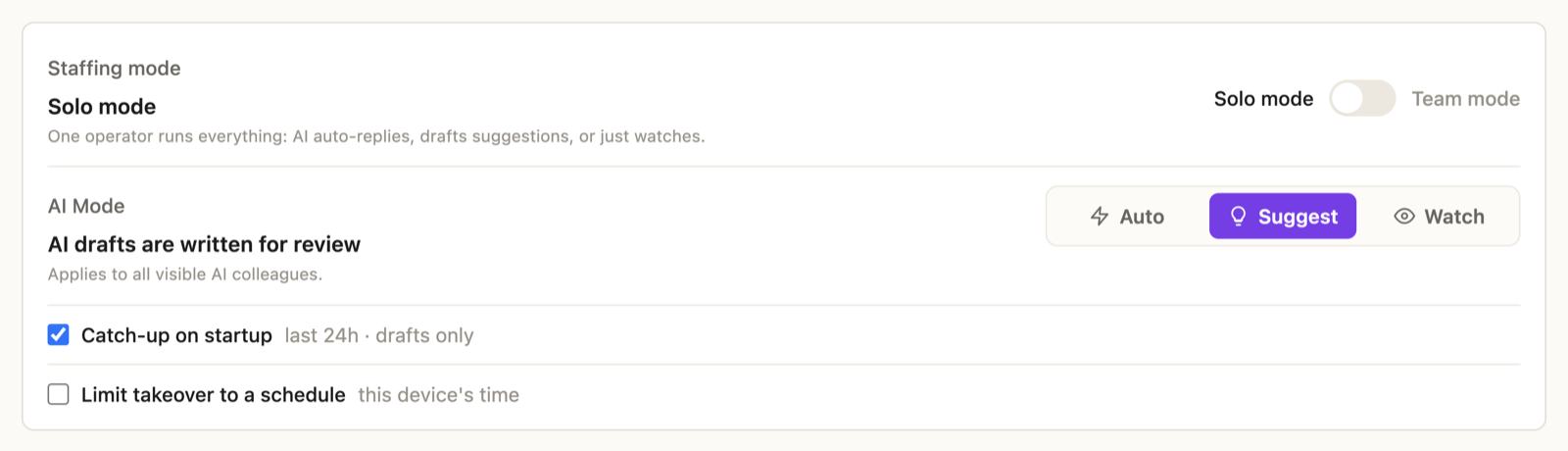
Suggest — the AI writes every reply as a draft; you approve, edit, or reject. Start here. It's fast (approving takes seconds, even from your phone) and nothing goes out without you.
Auto — the AI sends replies on its own. Switching it on asks for confirmation — "Every customer reply will be sent immediately, without your review… a bad reply can't be unsent" — and while it's on, an AUTO MODE banner stays visible so there's never any doubt. Move to Auto once you've been approving 90%+ of drafts unchanged for a while.
Watch — the AI reads and keeps your CRM current but never drafts a reply. You type everything yourself — with one big assist: Enter-to-translate turns your words into the customer's language as you send. This is the mode for people who want the intelligence without the automation.
Two companions to know:
- Catch-up on startup — when you open the app, messages that arrived while it was closed (last 24h) get queued as drafts. Drafts only — catch-up never auto-sends.
- Limit takeover to a schedule — let the AI take over only After hours, Weekends, or All day. Great for "AI answers at night, I answer by day."
✓ You've got Solo right when the mode matches your trust level: Suggest while learning, Auto for routine traffic, Watch if you only want the brain, not the pen.
Team mode: your reps + AI drafts
Flip Staffing mode to Team mode and the logic changes completely: every customer message becomes an AI draft routed to your human reps on Telegram — nothing is ever sent automatically. The AI drafts; humans decide. The Auto/Suggest/Watch picker disappears because it no longer applies.
Set it up in three moves, all in the same tab:
1. Connect the bot — same Telegram setup as solo. This bot is shared by both modes.
2. Add seats. In Team seats, click Add seat, name the rep, and send them the invite link — they tap it, press Start, bound. (There's also a short code they can text to the bot; codes expire in 10 minutes.)
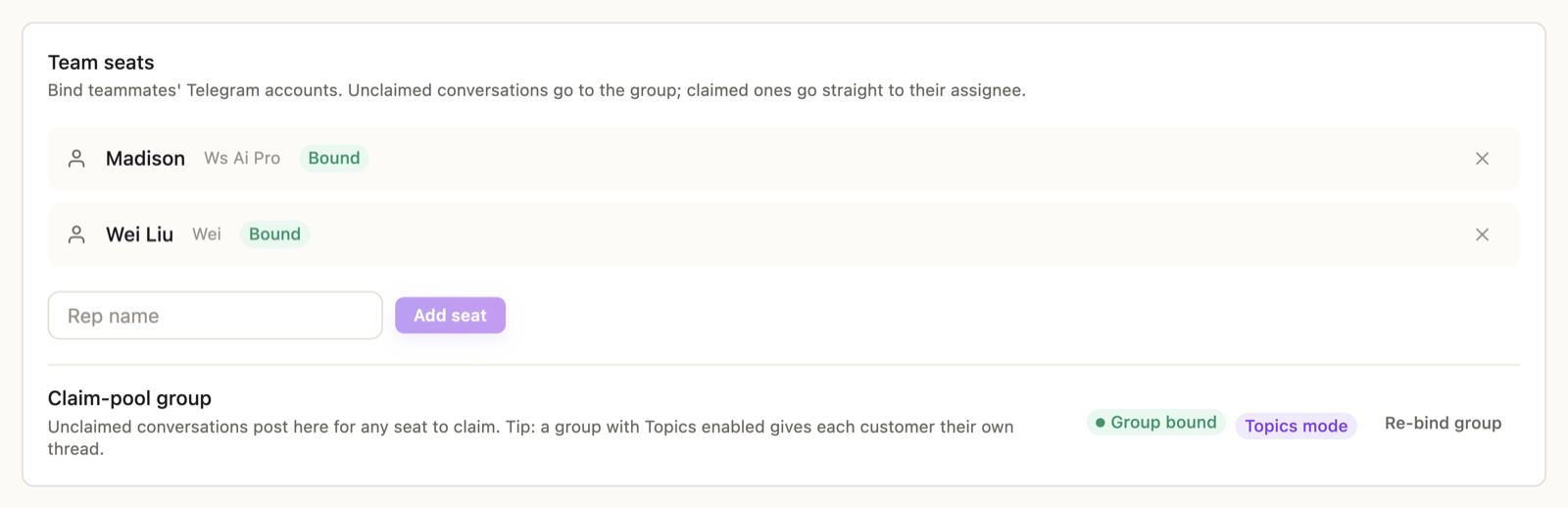
3. Bind the claim-pool group. Create a Telegram group with your reps, add the bot, and bind it. Unclaimed conversations post there for anyone to take.
Do yourself a favor: enable Topics on that group. With Topics on, every customer gets their own thread, and a rep replies by simply typing in the thread — no claim tap needed, no reply gesture. It's the smoothest version of Team mode by far.
How the day-to-day works
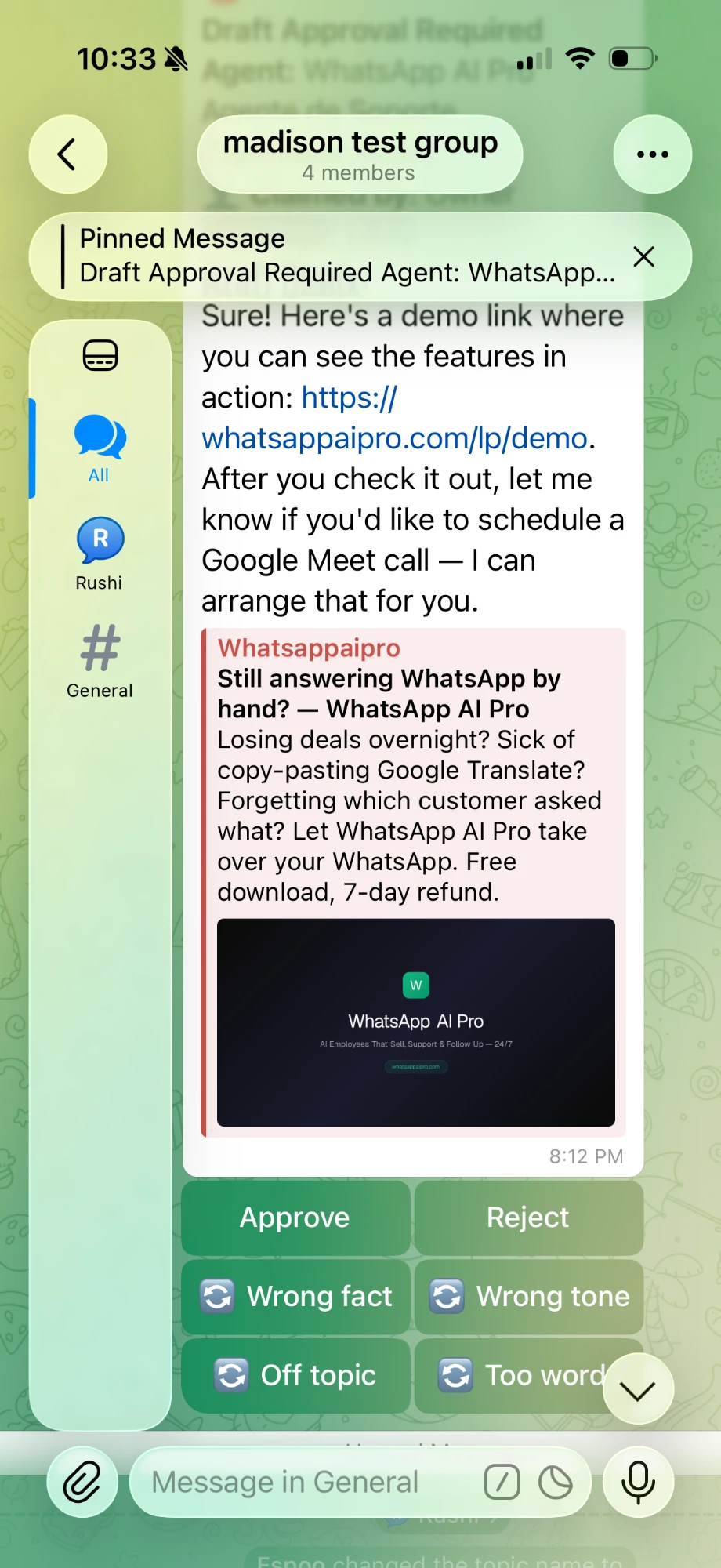
- New customer message → AI writes a draft → it lands in the customer's topic (or as a group summary with a Claim button).
- A rep answers by tapping Approve, tapping a fix chip, or just typing their own reply — whatever they type goes to the customer through your WhatsApp number.
- Claimed a conversation you can't finish? Return it — it goes back to the pool for someone else, draft intact. Claims idle for 24 hours return automatically.
✓ You've got Team right when a test message flows: customer → group → claim → reply → customer, without anyone touching the desktop.
So which one?
| Your situation | Use |
|---|---|
| You answer customers yourself | Solo · Suggest, moving to Auto for routine traffic |
| You only want translation + CRM, no AI replies | Solo · Watch |
| 2+ people answer one WhatsApp number | Team |
One switch, flip anytime. Going back from Team to Solo instantly stops routing customer traffic to seats — the bindings stay for next time.
Next: What's in Enterprise →