
Telegram Remote Tutorial: Approve AI Replies From Your Phone
Connect a Telegram bot in 5 minutes and run your WhatsApp AI from anywhere: approve or reject drafts, fix them with one tap, and get your morning briefing on your phone.
Suggest mode means every AI reply waits for your approval — which is only practical if approving doesn't chain you to your desk. Connect Telegram and every approval lands on your phone: read the draft, tap a button, done.
Setup lives in AI Nexus → Takeover Settings, under Telegram setup.
🎬 2-minute demo path — showing this live?
- Show a draft notification on your phone: customer message + AI draft + buttons.
- Tap Approve → the reply sends from WhatsApp on the desktop.
- On the next one, tap Wrong tone → a regenerated draft arrives in seconds.
Step 1 — Create your bot and connect it
Expand Telegram setup and follow the four steps shown on screen:
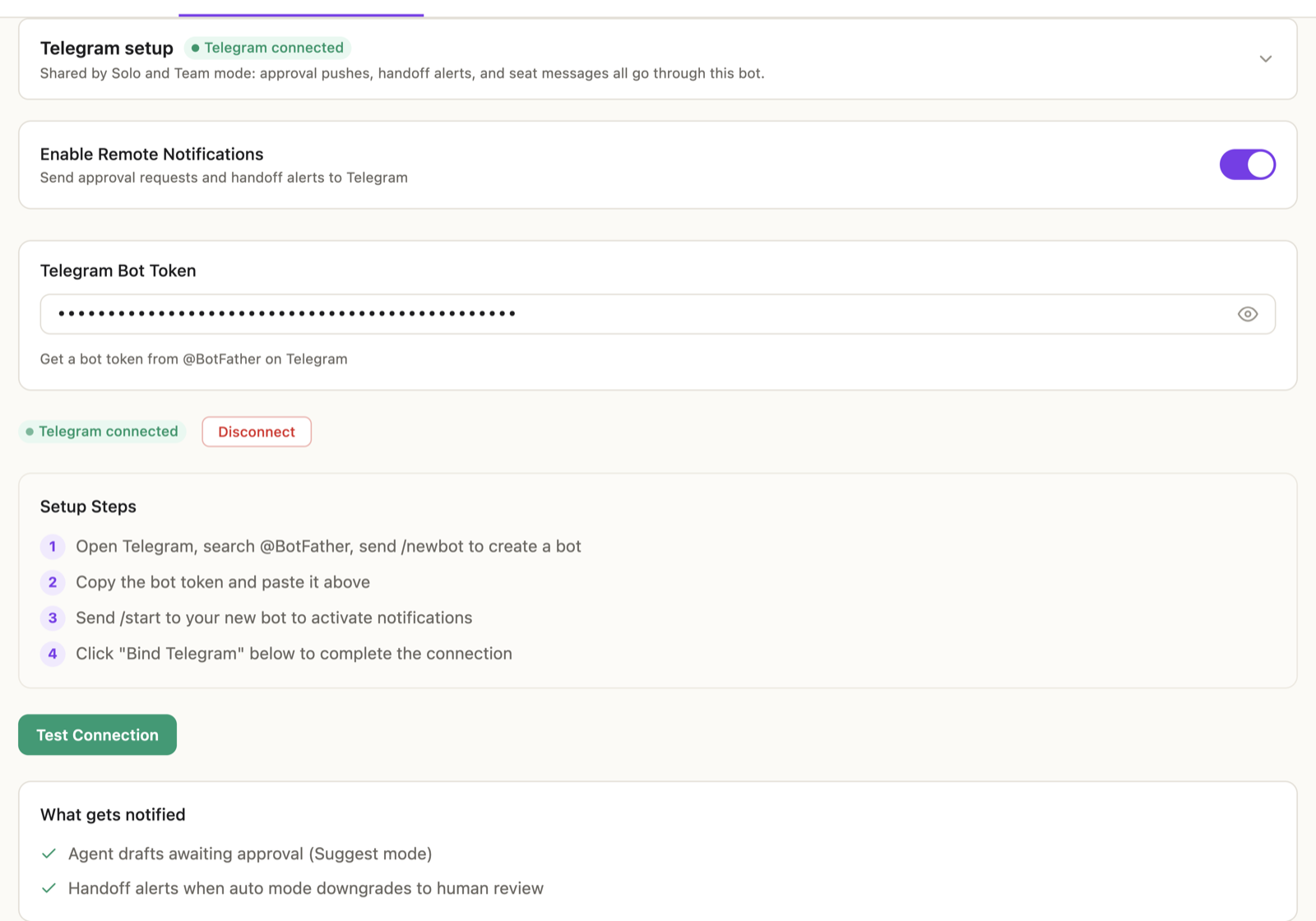
- In Telegram, search @BotFather, send
/newbot, and copy the token it gives you. - Paste the token into the Telegram Bot Token field and turn on Enable Remote Notifications.
- Send
/startto your new bot in Telegram. - Click Bind Telegram.
Then hit Test Connection — a test message should appear on your phone. If it does, you're live.
✓ Done when the status pill reads Telegram connected and the test message arrived.
Step 2 — Approve your first draft from your phone
From now on, every pending draft arrives as a Telegram message: the customer's words (with a translation when needed), the AI's draft, and buttons:
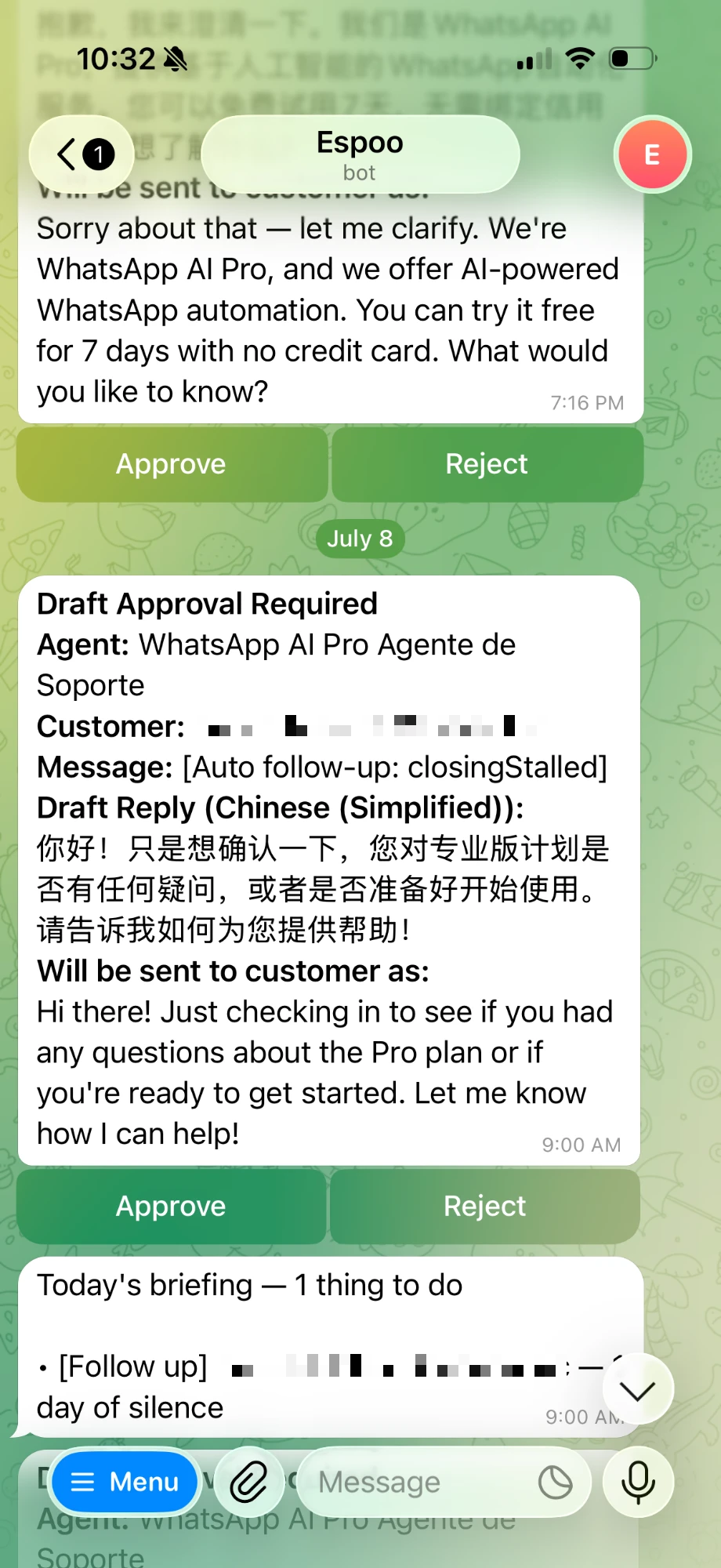
- Approve — the reply sends from your WhatsApp immediately.
- Reject — nothing is sent.
- Four fix chips — Wrong fact / Wrong tone / Off topic / Too wordy. Tap one and a corrected draft comes back in seconds, with fresh buttons.
- Reply with your own text — use Telegram's reply function on the notification and type your answer; it's sent to the customer as-is, replacing the draft.
One note: the notification text itself is currently in English; the buttons follow your app language.
✓ Done when you've approved one draft and seen it sent — from wherever you happened to be standing.
Step 3 — Know what else lands on your phone
Beyond approvals, the bot sends:
- Handoff alerts — when the AI decides a conversation needs a human (a complaint, a tricky discount request), you get pinged with the reason.
- Your morning briefing — the same "N things to do today" list from the Dashboard, delivered daily.
Approvals are also polite about hours: overnight, drafts still get created but the phone ping waits for morning.
Working as a team
Everything above is the solo setup — one owner, one phone. If several people share the WhatsApp number, the same bot becomes a full team dispatch system: teammates bind as seats, unclaimed conversations go to a shared group to claim, and each customer can get their own Telegram topic. That's Team mode — set it up with the Solo vs Team tutorial.
Things that trip people up
"Test Connection fails." Re-check the token (paste it exactly), and make sure you actually sent /start to the bot — step 3 is the one people skip.
"Notifications stopped after I changed the bot token." Changing the token requires binding again — the panel will show "Bot key changed — bind again to restore notifications."
"Can two computers use the same bot?" No — one bot, one desktop app. If another device polls the same bot, buttons stop working; the panel warns you when this happens. Use a different bot per workspace.
Next: Solo mode vs Team mode →