
AI Agent Tutorial: Create, Refine, and Test Your AI Assistants
Create a Sales or Support agent, train it by chatting, test it as a customer, and fix any draft with one-tap rewrite chips — step by step.
An AI agent is the persona that answers your customers — with a name, a role, and rules you set in plain language. The app ships with two ready to go; this tutorial shows you how to add your own, train it by talking to it, and keep improving it while it works.
Everything happens in AI Nexus → Takeover Settings.
🎬 2-minute demo path — showing this live?
- Open an agent's Test chat → ask a pricing question → grounded answer.
- Switch to Refine → type "keep replies under two sentences" → save.
- Back to Test → same question → visibly shorter answer. You train it by talking to it.
Step 1 — Create an agent
Open the Takeover Settings tab. Two agents (Sales and Support) are already there — use them as-is, or click New Agent at the bottom of the list:
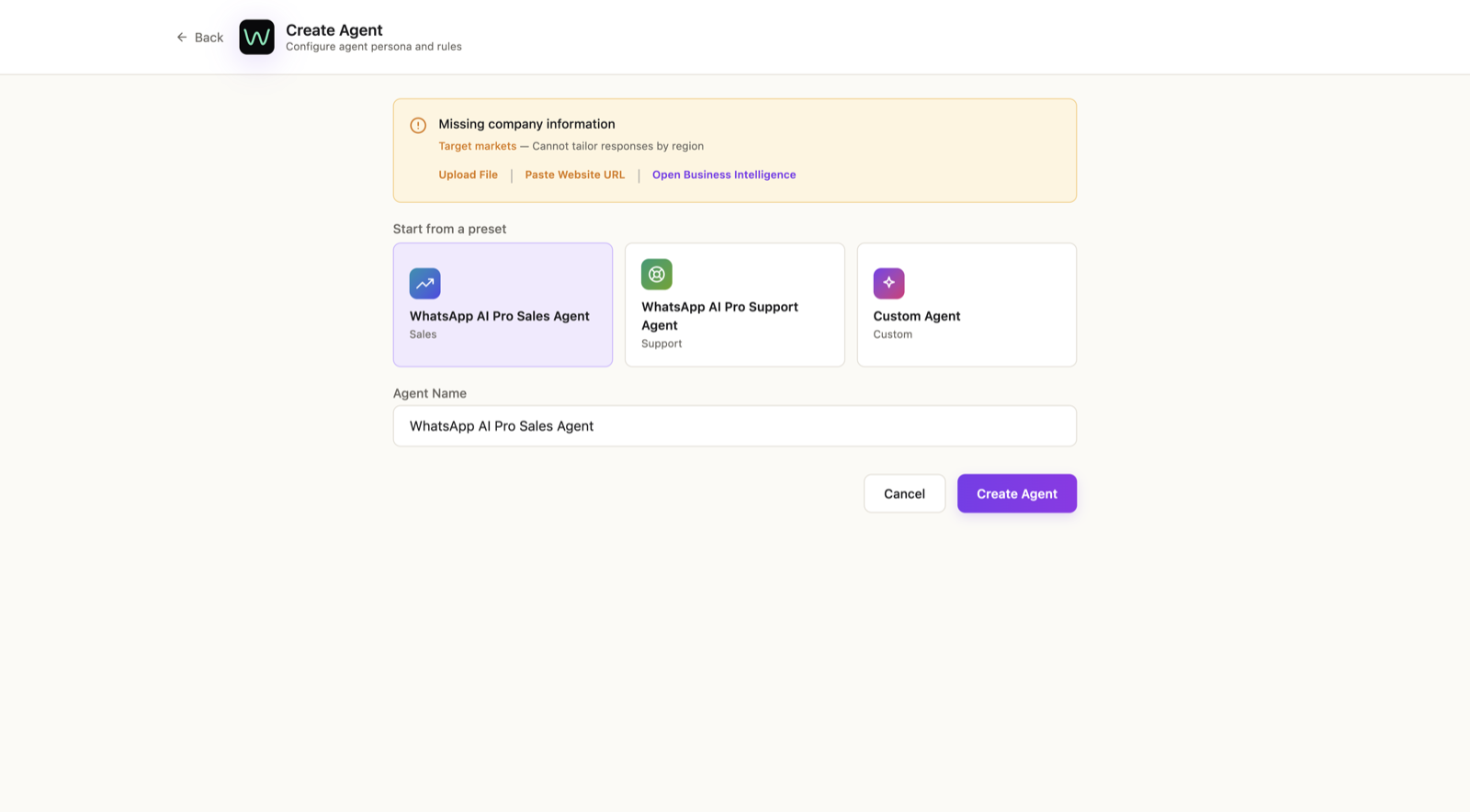
- Sales Agent — inquiries, quoting, follow-up.
- Support Agent — after-sales, returns, troubleshooting.
- Custom Agent — define the role yourself.
Pick a preset, name it, click Create Agent.
Keep at least two agents (one Sales, one Support) — the app routes each incoming message to the right specialist, and routing works best with clear roles.
✓ Done when the new agent card is in the list.
Step 2 — Train it by chatting (Refine)
On the agent card, click Refine. A chat panel opens — talk to your agent about how it should behave:
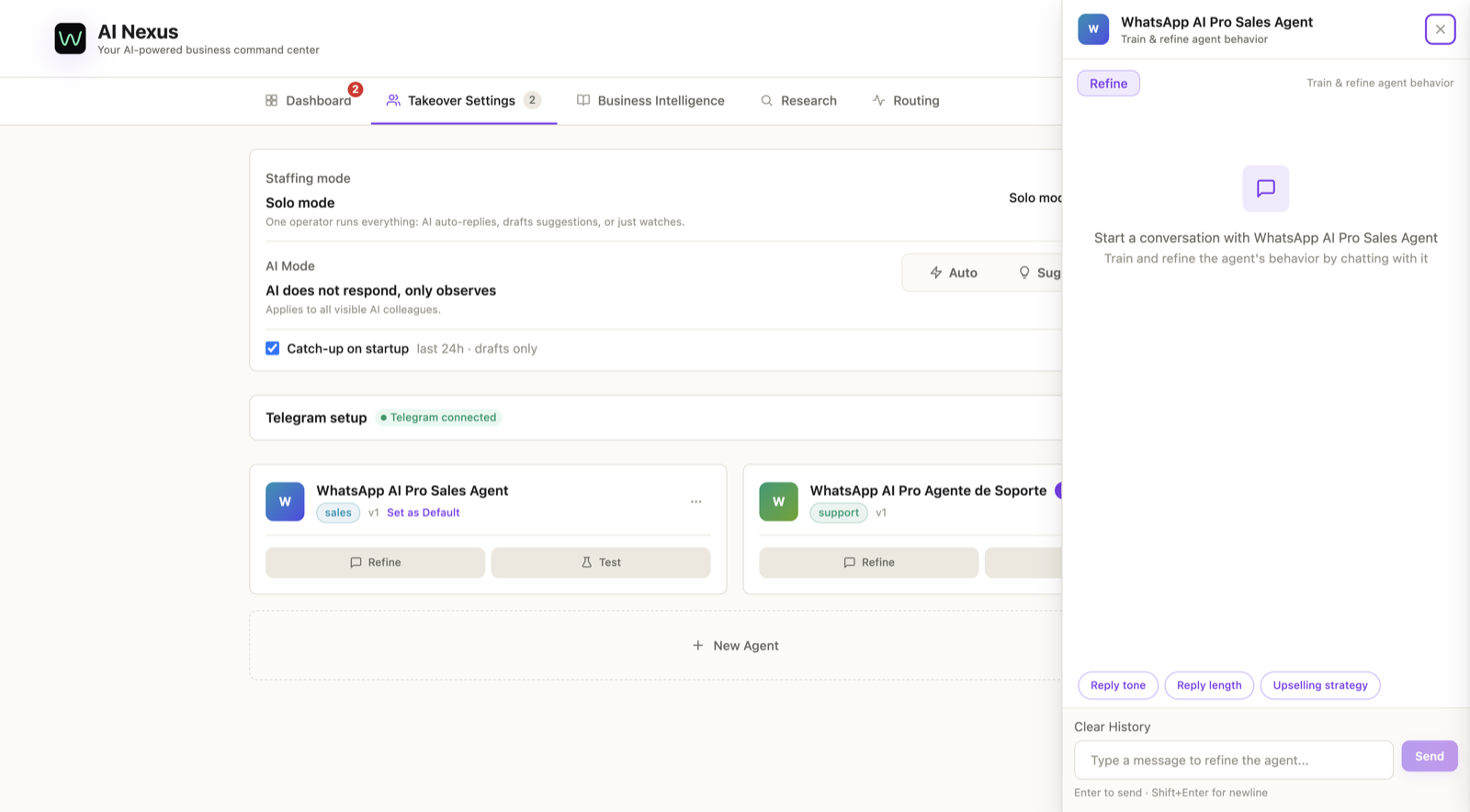
Instructions that work well, in any language:
- "Write like a helpful human, not a brochure."
- "Never promise delivery dates."
- "If someone asks for more than 5% discount, don't answer it yourself — flag it for me."
- "For new inquiries, always confirm quantity and destination country before quoting."
When you're done, click Finish (Save) — that turns the conversation into training notes the agent applies from now on. Skip this and nothing sticks.
✓ Done when you've saved 3–5 instructions covering tone, one boundary, and one escalation rule.
Step 3 — Test it as a customer
Click Test on the same card. Now you are the customer:
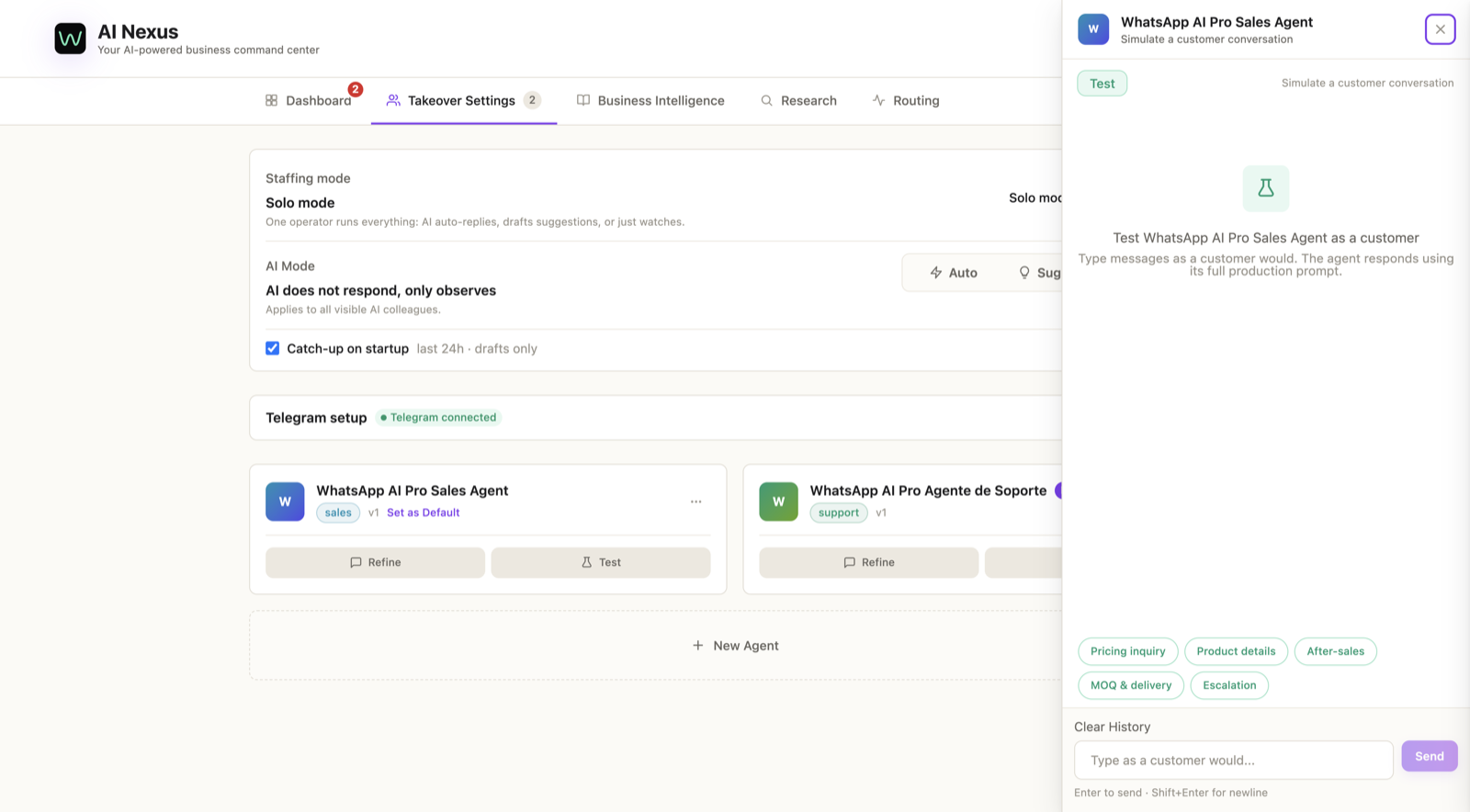
Ask your hardest real questions — pricing with quantities, shipping destinations, the awkward ones. What you see here is exactly what a customer would get. Wrong answer? Go back to Refine, say what to change, re-test.
✓ Done when it gets your five hardest questions right, in your voice.
Step 4 — Set the default and go live
On the agent that should handle new conversations, click Set as Default. Keep AI Mode on Suggest for the first week — every reply is a draft you approve. (Modes are covered in the Solo vs Team tutorial.)
✓ Done when one card shows the Default badge.
Step 5 — Keep improving it while it works: the rewrite bar
Once drafts start flowing, you rarely need the Refine chat — the fastest training happens right on each draft. Under every pending draft sits a rewrite bar:
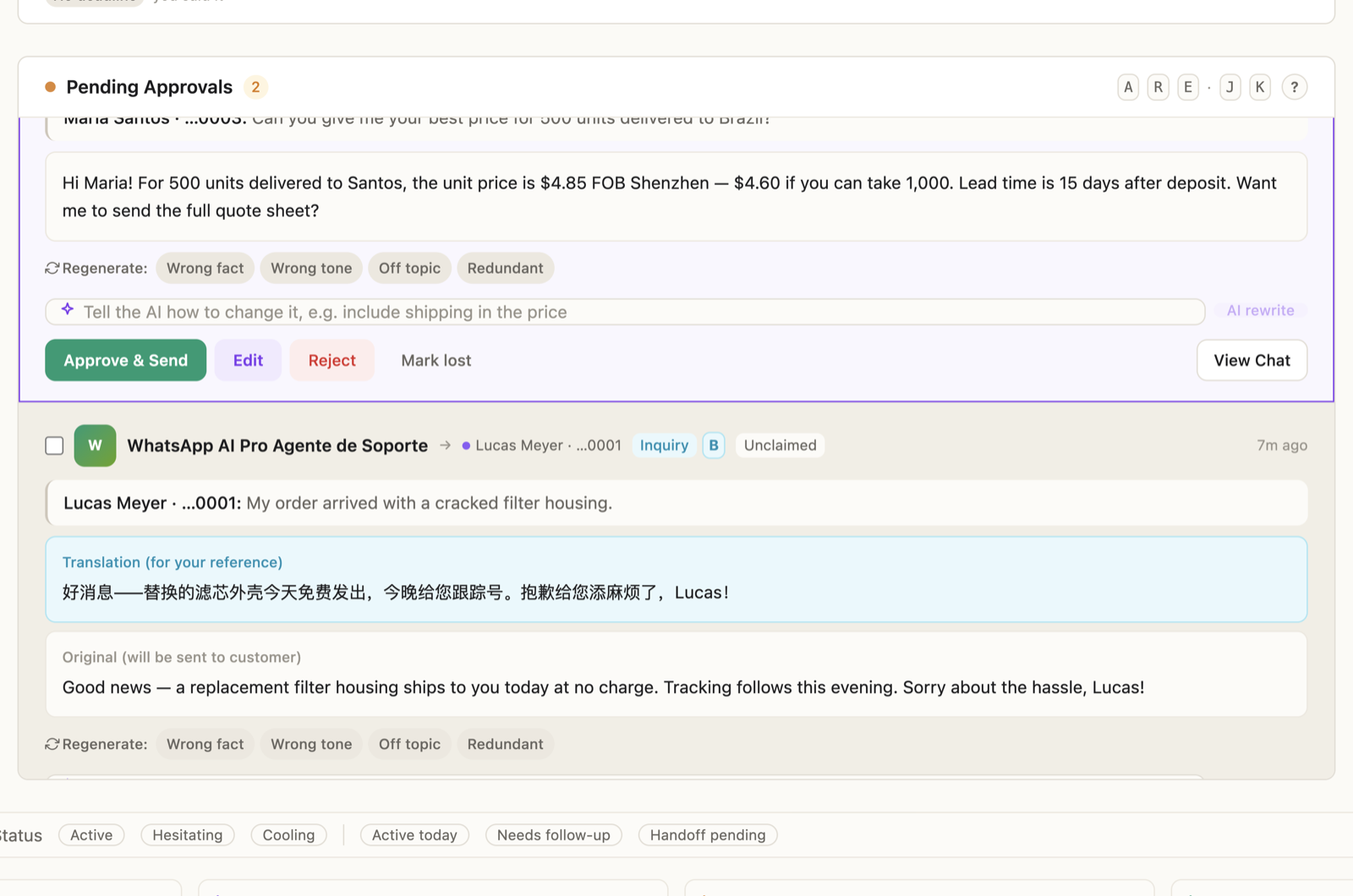
- One-tap chips — Wrong fact / Wrong tone / Off topic / Redundant. Tap one and the draft regenerates with that fixed.
- Free instruction — type exactly what you want: "include shipping in the price" → AI rewrite.
Every chip you tap and edit you make doubles as a lesson — the agent learns your patterns over time.
Things that trip people up
"The agent refuses to quote prices." It has no company info to quote from. Do the AI replies setup first — agents only state facts they actually have.
"My Refine instructions aren't being followed." You didn't click Finish (Save). Unsaved conversations don't become training notes.
"Can different agents handle different things?" Yes — that's the point of roles. Sales handles inquiries, Support handles "where's my order"; messages route to the right one automatically.