
AI Replies Tutorial: Add Your Company Info, Get Your First AI-Written Reply
The one prerequisite for AI replies is company info. Add it in 10 minutes — by chatting, uploading a file, or pasting your website — and watch the first draft appear.
AI replies have exactly one prerequisite: the AI must know your business first. Until you add company info, the app deliberately won't reply for you — it has nothing true to say, and a made-up price is worse than no reply. You'll see the reminder "Add company info to enable AI replies" until this is done.
This tutorial gets you from empty to your first AI-written reply.
🎬 2-minute demo path — showing this live?
- Open AI Nexus → paste the customer's website into the setup chat → watch their products appear.
- Click Save profile.
- Send a test question from another phone → show the draft with Approve & Send.
Step 1 — Open AI Nexus
Click AI Nexus in the left sidebar. First visit lands you on the setup screen — no tabs yet, just one job: teach the AI your business.
✓ Done when you see "Welcome to AI Nexus" with the setup chat.
Step 2 — Add your company info (pick any way)
The setup is a conversation. Answer a few quick questions — company name, products, strengths, markets — and your profile builds itself as you type:
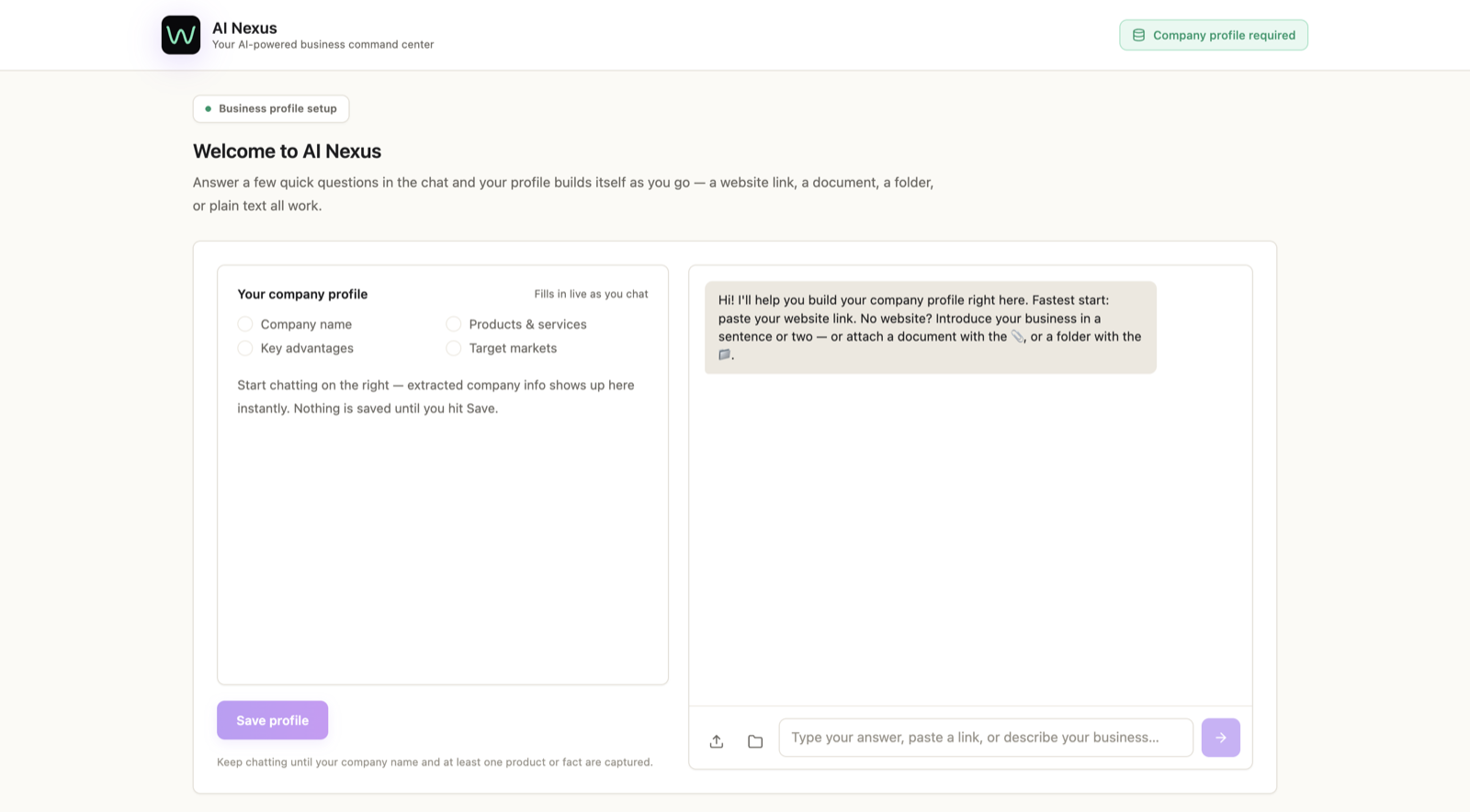
Faster shortcuts, all accepted right in the same screen:
- Paste your website URL — the AI reads it and extracts products, prices, and policies.
- Upload a file — PDF, Word, Excel, plain text. Catalogs and price lists work best.
- Pick a folder — everything inside gets read.
When the profile shows your company name and at least one real product, click Save profile.
✓ Done when you see "Profile saved — your AI team is ready."
Step 3 — Check what the AI knows
Open the Business Intelligence tab and read through what was captured:
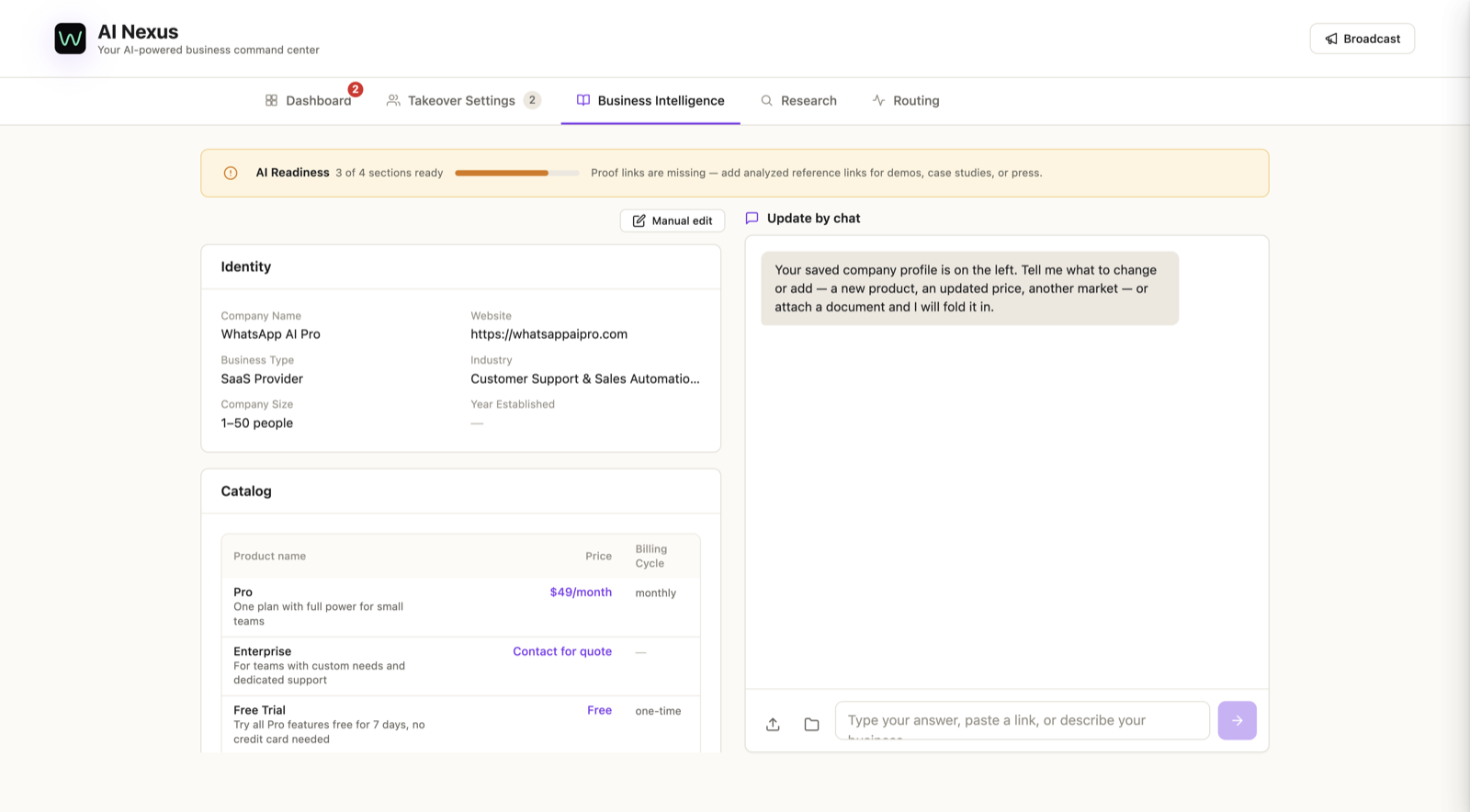
Two things to check:
- Products and prices — read every row. A wrong price here becomes a wrong quote to a real customer.
- AI Readiness — the panel tells you plainly what's missing and what it costs you, e.g. "Missing products — AI cannot quote anything until you analyze sources or add a product manually." Fix the critical ones now; the rest can wait.
✓ Done when products and prices are real and the readiness warnings you care about are gone.
Step 4 — Watch the first reply happen
Make sure AI Mode is on Suggest (in the Takeover Settings tab — it's the default). Now wait for a customer message, or ask a colleague to text your business number.
The AI writes a draft grounded in your company info. It appears with three buttons:
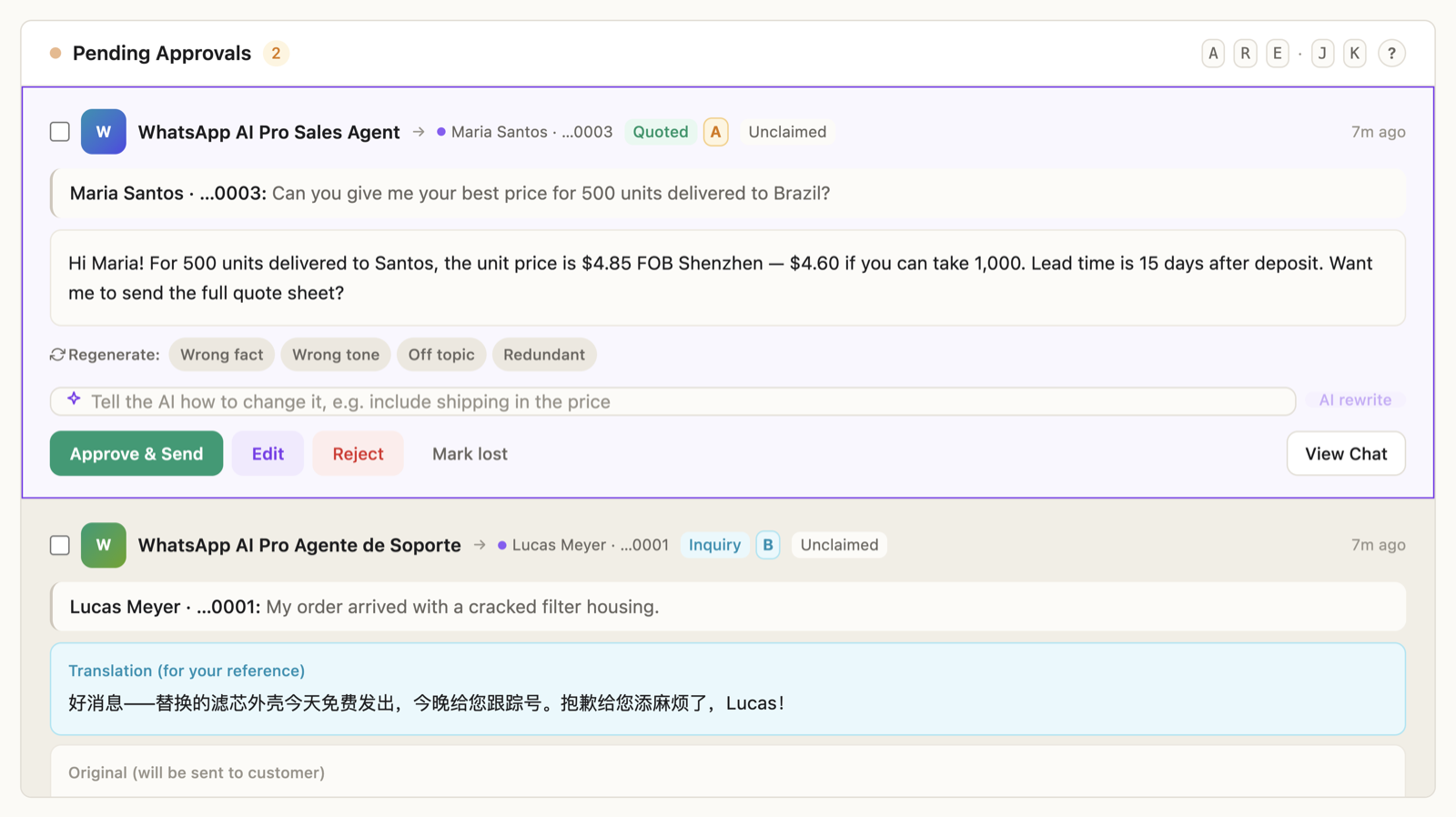
- Approve & Send — it goes out as-is.
- Edit — fix it, then send. Your edit also teaches the AI.
- Reject — nothing is sent.
That's the whole loop. In Suggest mode nothing ever reaches a customer without your tap.
✓ Done when your first approved reply is delivered.
It reads more than text
No extra setup needed for any of these:
- Voice notes — transcribed automatically, and the AI understands the content when drafting its reply.
- Images and documents — a photo of a product or a spec PDF from the customer is read and used as context.
- Any language — the customer writes in Portuguese, the AI reads your English (or Chinese) company info and replies in Portuguese.
Things that trip people up
"The AI is inventing prices or specs." Its info is incomplete. Go to Business Intelligence, fill the gaps (especially products and trade terms), and it stops guessing — it only speaks with confidence where it has facts.
"I updated my price list." Upload the new file (or re-add your website) in Business Intelligence. Replies use the new data immediately.
"Can it reply fully automatically?" Yes — that's Auto mode. Run Suggest for the first week, then see the Solo vs Team modes tutorial for when and how to switch.