
Translation Tutorial: Read Every Message, Reply in Any Language
Incoming messages and voice notes translate themselves. And in Watch mode, just type in your language and press Enter — the app detects the customer's language and sends the translation.
Translation in WhatsApp AI Pro needs no setup and has no switches to find — but knowing how it behaves makes it dramatically more useful, especially the part where pressing Enter translates your outgoing message automatically.
🎬 2-minute demo path — showing this live?
- Open a chat with foreign-language messages → every incoming bubble has its translation right underneath.
- Play a voice note → transcript and translation appear below it.
- In Watch mode, point at the green bar above the input box, type a sentence in your language, hit Enter → it arrives in theirs.
Incoming messages: translated under every bubble
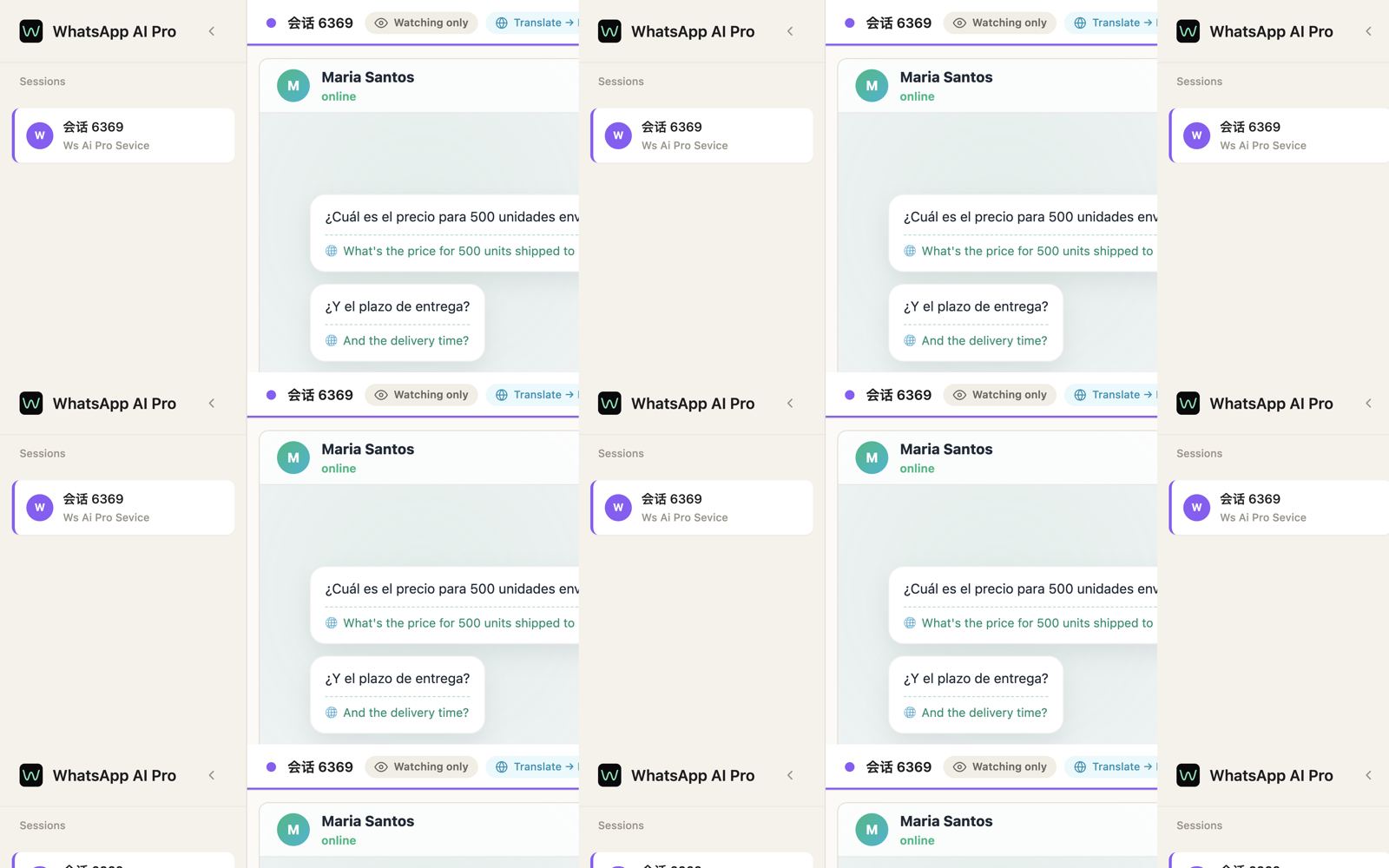
Nothing to turn on. Every incoming text message gets its translation injected directly below the original bubble, and the session header shows a badge — Translate → English (or your language) — confirming it's active.
- What language do translations appear in? Your interface language. Change it via your avatar (bottom of the sidebar) → Interface Language — English, 中文, Español, Português, ไทย, or Follow System. Translations follow immediately.
- A message already in your language just gets a small "already in the target language" note instead of a duplicate.
- If a translation hiccups, there's a Retry right on the message.
Voice notes: transcribed and translated
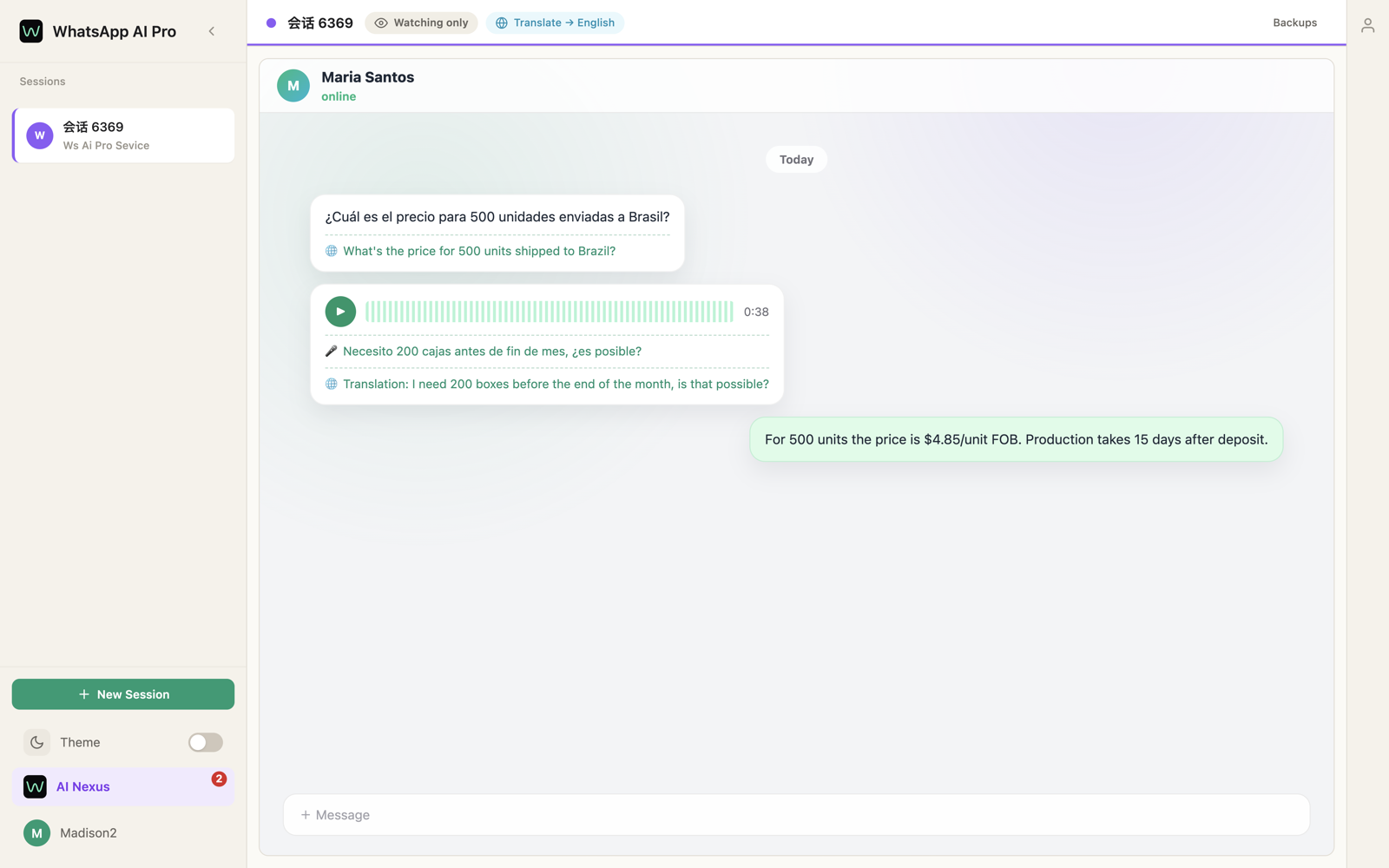
Voice messages get the same treatment automatically: a transcript appears under the audio player, followed by a translation into your language. Long customer voice notes stop being homework — and the AI reads the transcript too when it drafts replies.
Outgoing: type in your language, press Enter
This is the feature people miss, because it only appears where it makes sense. In Watch mode (and Team mode) — the modes where you type the replies — a green bar appears above the input box once the app knows the customer's language:
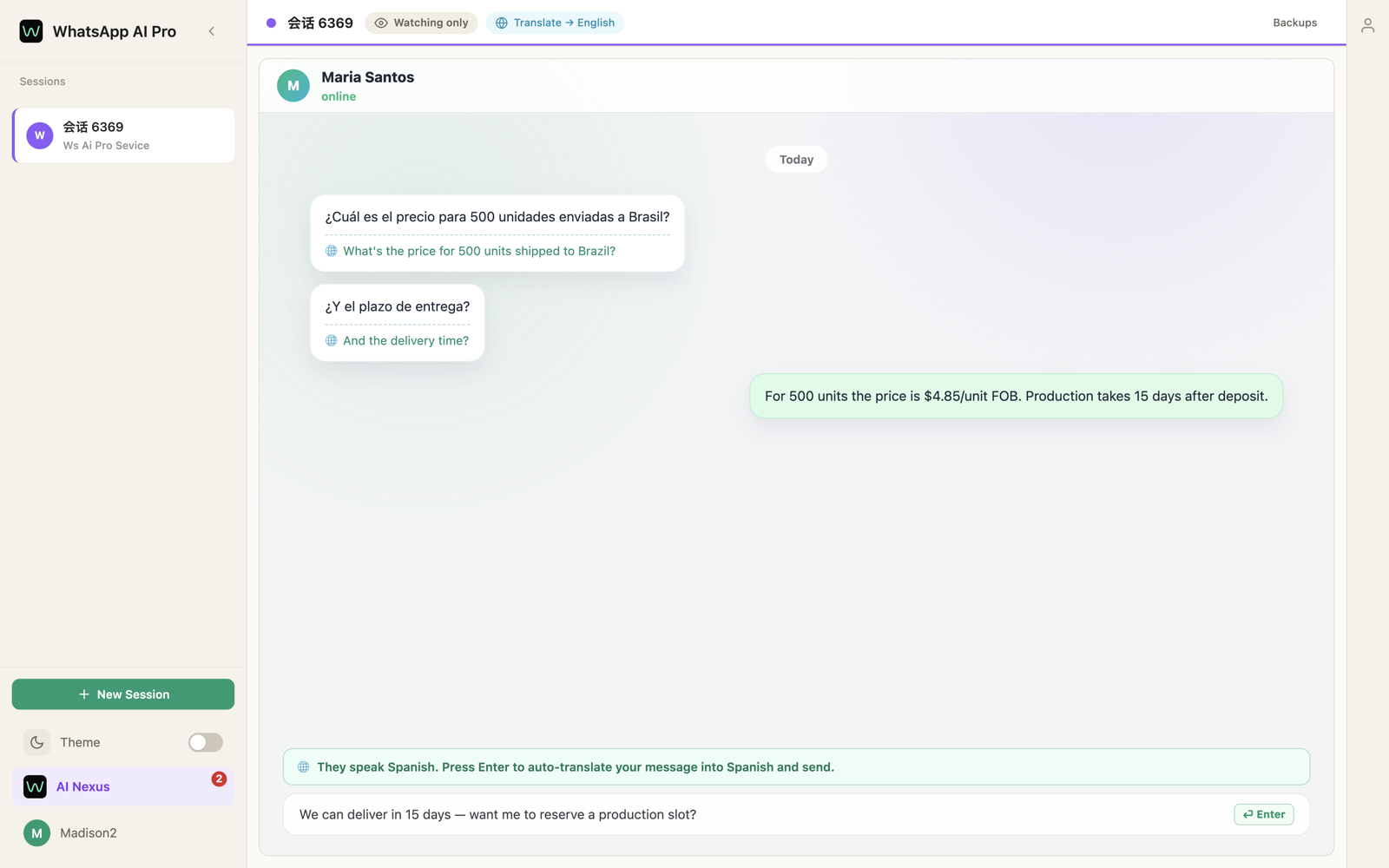
They speak Spanish. Press Enter to auto-translate your message into Spanish and send.
Type your reply in your own language, press Enter — the customer receives it in theirs. That's the entire workflow. Details worth knowing:
- It detects the customer's language for you — no picking from a list. The app watches what the customer writes, and once it's confident (after a few messages), the green bar appears. Before that, Enter just sends normally.
- If the customer already writes your language, no translation happens — Enter sends as-is.
- It never sends untranslated by accident. If translation fails, your text stays in the box with an error note; press Enter to retry.
- Group chats are left alone — this works in one-on-one customer chats.
- In Auto/Suggest modes the bar shows "AI will reply in Spanish" instead — the AI is doing the replying there, in the right language already, so Enter isn't intercepted.
✓ You've got it when you type one sentence in your language, hit Enter, and see it arrive in the customer's — check the chat, the sent bubble is the translation.
Things that trip people up
"The green bar isn't showing." Either you're in Auto/Suggest mode (the AI replies there — switch to Watch if you want to type yourself), or the app hasn't seen enough messages from this customer to be sure of their language yet. A few more messages and it settles.
"Translations are in the wrong language." They follow your Interface Language setting — check your avatar menu. "Follow System" uses your computer's language.
"Does the customer know I'm translating?" No. They receive a normal WhatsApp message in their language — no labels, no "translated by" tags.