
Enterprise Inbox Tutorial: The Shared Support Workspace in Your Browser
No Telegram needed — reps open a web page, claim conversations, review AI drafts, and reply to customers. Three steps for the boss, zero installs for the team.
Inbox mode is the Enterprise way to run a support team: a shared web workspace. Reps sign in from a browser, claim conversations, approve AI drafts, and reply to customers — no Telegram, nothing to install on their machines. The desktop app keeps doing what it does best: staying connected to WhatsApp, running the AI, and syncing everything to the web in real time.
Inbox and Telegram are an either/or choice: pick Inbox and Telegram notifications go quiet; switch back and Inbox forwarding stops. Claim state stays consistent across both — no "claimed on the web, still up for grabs elsewhere."
🎬 2-minute demo path — showing this live?
- Web inbox and desktop side by side. A customer messages → a card appears in the claim pool instantly.
- Click Claim → the conversation opens: full history with translations, customer file on the right, an AI draft at the bottom.
- Click Approve & send → the reply goes out on WhatsApp. Nobody touched the desktop.
Boss setup: three steps
Step 1 — Pick the Inbox channel on desktop
In AI Nexus → Takeover Settings, switch Staffing mode to Team mode and choose Inbox mode as the team channel (the card unlocks on Enterprise). The Web Customer Service panel expands below:
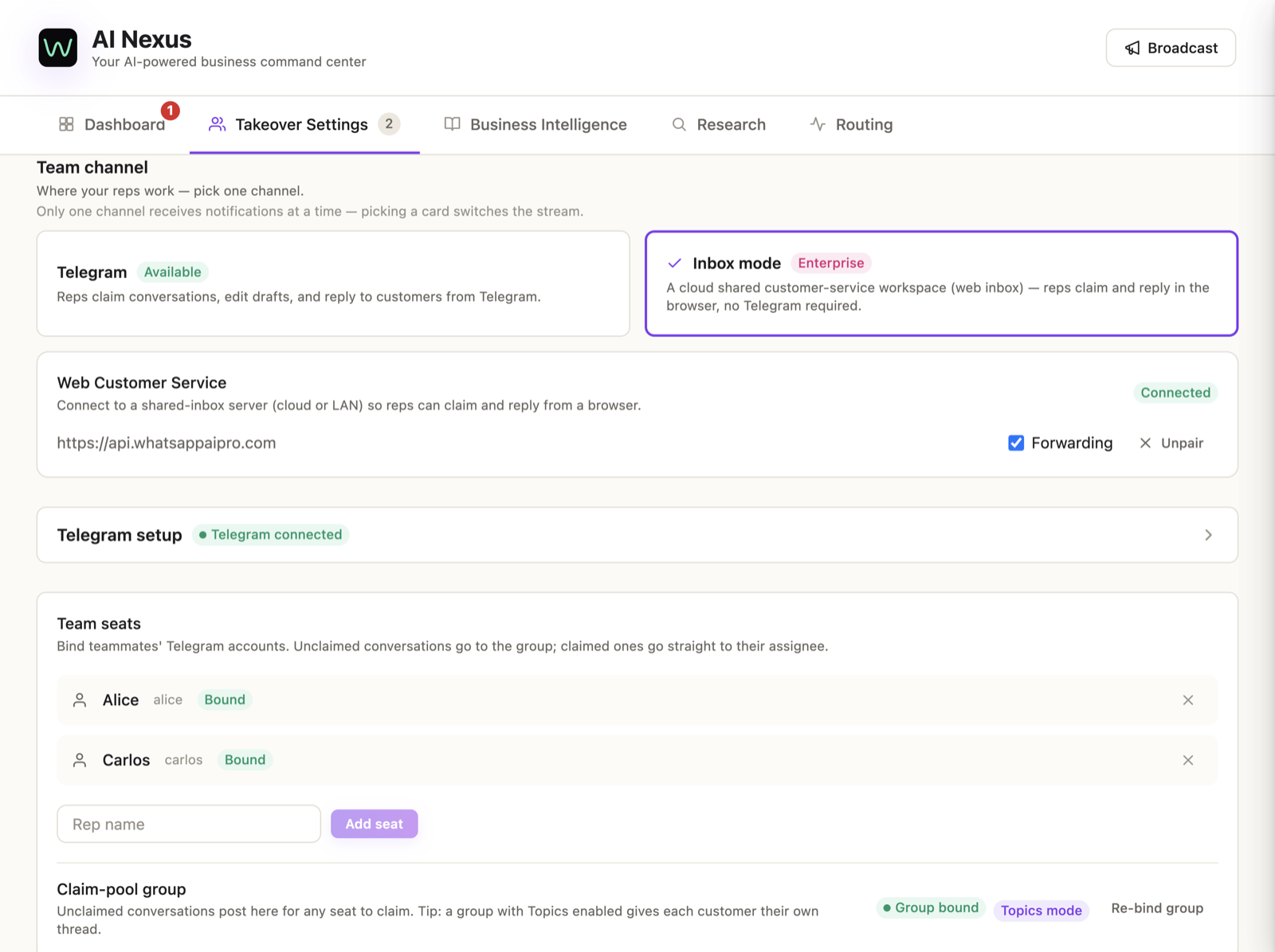
The server address comes pre-filled with the cloud endpoint — leave it. Self-hosting on your LAN? Enter your own address (e.g. http://192.168.1.10:8090).
Step 2 — Generate a pairing code on the web
Open inbox.whatsappaipro.com, sign in with your Company account (your main WhatsApp AI Pro login), and go to Settings → Generate pairing code:
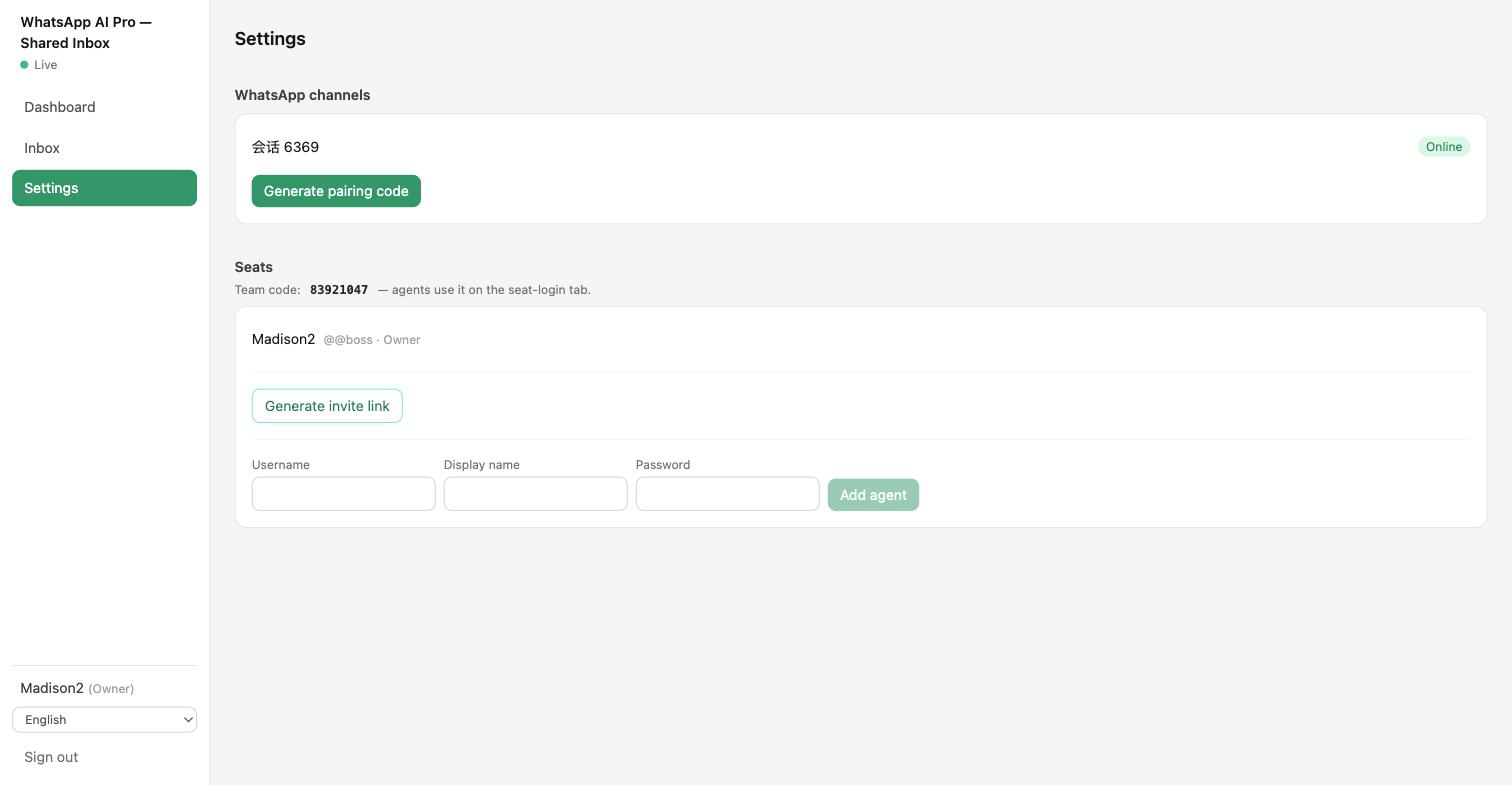
You get a PAIR-XXXX code, valid for 10 minutes.
Step 3 — Pair the desktop
Paste the code into the desktop pairing field and click Pair. The status flips to Paired · Connected, and conversation history backfills to the web automatically.
✓ Done when your channel shows Online under Settings → WhatsApp channels on the web.
Adding reps: two ways
On the web, Settings → Seats:
- Add agent — create a username + password and hand it over.
- Invite link — the teammate opens it, sets their own password, done.
Reps sign in on the Agent seat tab of the login page: username + password + the team code (shown on the Settings page — the boss shares it once).
✓ Done when the rep appears in the seats list and can see the Dashboard.
A rep's day: claim → handle → next
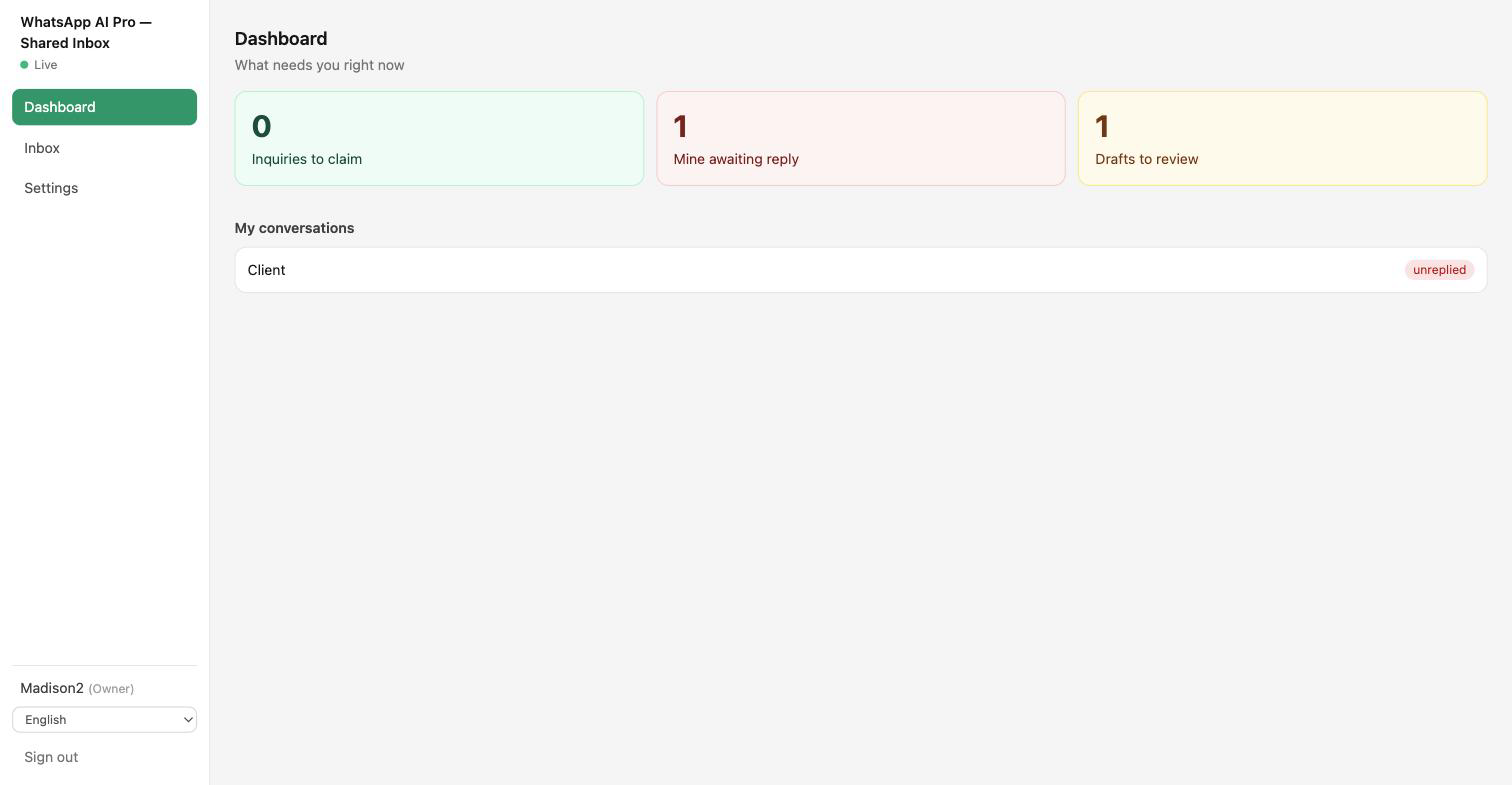
Start at the Dashboard
The Dashboard isn't a chart gallery — it's three numbers, each clickable: Inquiries to claim · Mine awaiting reply · Drafts to review.
Claim from the pool
The Inbox has three tabs: Pool / Mine / All (All is owner/admin only). Pool cards show the customer, intent, trigger message, and wait time — first click wins; a slow click gets "Someone else just claimed it." Before claiming, reps only see summaries, never the full thread — the same privacy boundary as the Telegram group.
The conversation view: AI drafts wait for your call
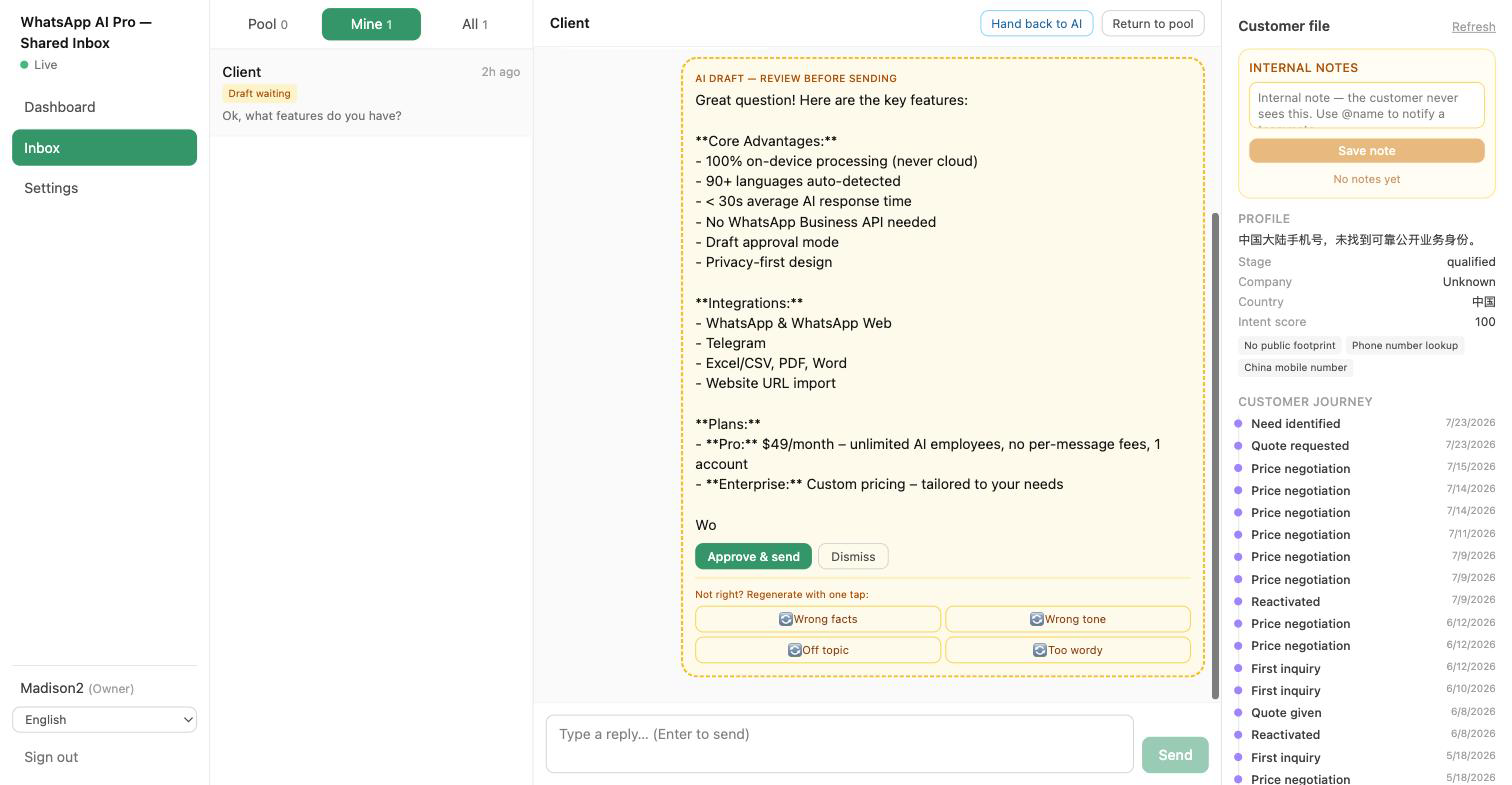
- The AI draft card — labeled "AI draft — review before sending." Approve & send ships it; not right? Dismiss, or regenerate by reason: Wrong facts / Wrong tone / Off topic / Too wordy — the same chips as desktop and Telegram, and your taps teach the AI the same way.
- Free-typed replies — type, hit Enter. Outbound messages still pass the desktop's forbidden-word and security filters — the web has no bypass.
- The customer file on the right — profile, stage, intent score, open commitments, marks and notes, synced live from the CRM.
- Internal notes — team-only notes the customer never sees;
@namenotifies a teammate (the Dashboard has a "Mentions of me" queue). - Collision protection — see " also viewing" when a teammate has the same conversation open; while the AI is drafting, the conversation is marked "AI handling."
Done with it: return or hand back
- Return to pool — can't finish it? Give it back; the draft survives for the next claimer (Return ≠ Reject). Idle claims auto-return after 24 hours.
- Hand back to AI — after a human steps in, the AI politely pauses; click this to let it take over again from the customer's next message.
✓ You've got it when one test message flows end to end — customer → pool → claim → approve draft → delivered — without anyone touching the desktop.
Things that trip people up
"The web says 'WhatsApp channel offline'." The desktop app is closed. The desktop is the WhatsApp channel — it must be running for messages to flow. Reopen it and everything reconnects; queued events deliver automatically.
"Can Telegram and Inbox run together?" No — one team channel at a time. Switching is one click on the channel cards, and claim state carries over seamlessly.
"Can reps read every customer conversation?" No. Reps see pool summaries plus their own claimed conversations; the All view belongs to owners and admins.
"We can't put data in the cloud." Inbox also ships self-hosted: a single binary on your own server, data never leaves your LAN. Talk to us for the deployment package.
Related: Solo vs Team mode → · Enterprise overview →